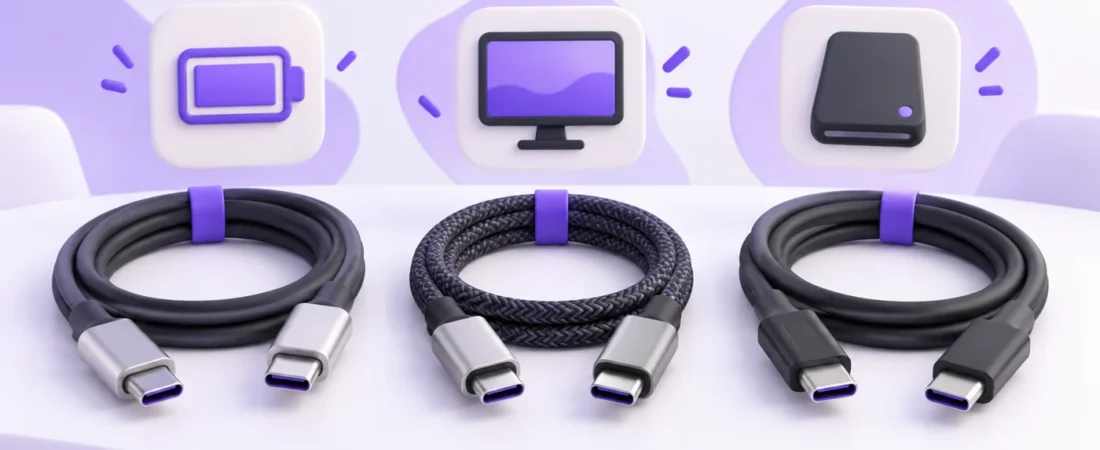
Image: Conceptual illustration of cable uses, not product photographs or certification markings.
For charging, buy for watts. For an SSD, buy for the drive’s data connection. For a monitor, confirm video support at both ends and in the cable. A cable can be excellent at one job and spectacularly unhelpful at another. The USB-C plug is very good at fitting into things. Explaining itself has never been its strongest subject.
Start with the cable supplied with your device. If it already does the job, is undamaged and reaches comfortably, keep it. If you need a replacement, write down the job, the required connection, the power rating and the length before shopping. This guide selects the cable for an existing setup. It does not assume you need a new dock, monitor or charger.
Affiliate disclosure: As an Amazon Associate, PickMeNot earns from qualifying purchases. Amazon links below are affiliate links. Recommendations are based on manufacturer and standards documentation checked October 15, 2026, not hands-on cable testing. Prices, availability, sellers and delivery dates are not quoted.
The cable decision matrix
Use this as a buying checklist. The requirements apply to the complete connection, including the computer or charger and the device at the other end.
| Your job | Cable to look for | Check before buying | Keep what you have when |
|---|---|---|---|
| Charge a phone, tablet or laptop at up to 60W | A suitable USB-C to USB-C charge cable rated for at least the required power | Charger, device and charging protocol must support the desired rate. USB 2 data is fine if charging is the only job. | The supplied cable charges normally and is intact. |
| Charge a laptop above 60W | A correctly rated 5A electronically marked cable; choose a 240W EPR-rated model for a new general-purpose purchase | Above 100W, the charger and laptop must also support the required USB PD Extended Power Range mode. | A known, intact 100W cable already meets a 65W, 90W or 100W setup’s requirement. |
| Use a 5Gbps or 10Gbps USB SSD | A USB data cable explicitly rated at or above the connection speed, with USB 3 compatibility | The actual port’s USB data rate, the enclosure and the exact cable length | The SSD’s included cable delivers the expected connection. |
| Use a 20Gbps USB 3.2 Gen 2×2 SSD | A cable supporting that 20Gbps USB connection | Explicit Gen 2×2 host support. A 40Gbps Thunderbolt badge alone does not establish it. | The original cable and host already support Gen 2×2. |
| Connect a native USB-C monitor | A full-featured USB-C cable with stated video support, sufficient power rating and the required display capability | Video output on the computer, video input on the monitor, resolution, refresh rate and any charging requirement | The monitor’s supplied cable works at your chosen display settings. |
| Connect a Thunderbolt SSD or display | A compatible certified Thunderbolt cable for the required generation | The device actually requires Thunderbolt; the host supports it; cable data and power ratings fit | The supplied Thunderbolt cable is working and long enough. |
The sections below explain the exceptions. In particular, USB 20Gbps and Thunderbolt 40Gbps are not interchangeable descriptions of a computer’s USB capabilities. Buying the larger number cannot add a missing protocol.
Read four separate specifications
Power, in watts: This describes a charging ceiling under compatible conditions. It says nothing by itself about SSD speed or monitor support. Apple’s 60W, 1m charge cable transfers data at USB 2 rates. Anker’s 240W A81L6 charging cable also specifies 480Mbps data and explicitly excludes video. A much larger wattage number can therefore leave a file transfer just as slow and a monitor just as blank.
Data rate, in Mbps or Gbps: USB 2’s 480Mbps rating is a signaling rate, not a promised file-copy result. Faster USB cables may specify 5, 10, 20, 40 or 80Gbps capabilities. Read the supported protocol as well as the number. An SSD, its enclosure and the host port can set a lower limit than the cable.
Video support: Look for an explicit DisplayPort Alt Mode, compatible USB-C monitor or Thunderbolt display statement. A power-only description leaves the question unanswered. Apple’s cable comparison explicitly notes that its USB-C Charge Cable does not support video. For native video, the cable needs the appropriate connections, and the computer needs an actual video output.
Length: The rating must apply to the length you are buying. A family name is insufficient when the listing combines short passive cables, longer active versions and several power ratings. The six-foot option deserves its own specification check, even if the three-foot option has an impressive collection of badges.
What today’s USB cable labels tell you
The current USB-IF cable-logo guide separates power and data information. Certified USB-C to USB-C cables use 60W or 240W power markings, with the applicable speed marking on higher-speed cables. USB 2.0 charge-and-data cables can use a power-only logo even though they transfer data at up to 480Mbps. A 240W mark without a speed mark is therefore no basis for expecting fast storage or video.
There is a historical wrinkle. USB-IF retired the 100W and 10Gbps C-to-C cable certification categories in favor of newer categories. That program change does not turn an existing, correctly specified 100W cable into rubbish or remove its capabilities. It also does not mean 10Gbps USB devices disappeared. Keep evaluating the actual cable and task.
When certification influences your choice, check the exact product rather than a brand-wide claim. USB-IF’s logo rules require eligible products to pass its compliance program. Its product directory is useful, but the default display covers only the previous two years. An absent first-page result is not a reliable verdict on an older cable.
Certification is evidence about the requirements that program covers. Do not read a USB-IF or Thunderbolt logo as an unlimited safety guarantee, or assume a retailer’s product image proves that the item arriving in the envelope is genuine. Buy an identifiable model through a seller you can evaluate, and keep the order details.
For charging, match the power path before buying more watts
For ordinary USB-C Power Delivery charging, the charger, cable and device work together. A 240W cable does not push 240W into your phone, and it cannot extract 100W from a 30W charger. The relevant result is the charging mode all parts support, not the largest number printed anywhere on the desk.
At the common 20V USB PD charging level, 3A corresponds to 60W and 5A to 100W. Higher standard USB PD power uses Extended Power Range; Texas Instruments describes the range up to 48V and 5A, or 240W. A laptop asking for 140W needs the appropriate charger and charging support as well as an EPR-capable cable. Replacing only the cable may change nothing.
What the e-marker does: It is electronics that communicates cable capability. Cables supporting more than 3A require electronic marking, as explained in TI’s cable-construction guide. It is not a video upgrade, a speed boost or a stand-alone safety certificate. An e-marked 240W USB 2 charging cable can still lack the wires needed for native monitor video.
My purchasing rule is straightforward: if you are buying a new cable for a laptop that needs more than 60W, choose a clearly specified 240W EPR model from an identifiable manufacturer. For an existing 100W setup, an intact, known 100W cable can remain perfectly useful. You do not have to replace working equipment because a newer logo exists.
Before blaming the cable for slow charging, check which charger port you used and what happens when other devices share that charger. Check the laptop’s supported charging input, too. A proprietary phone fast-charge mode may require the manufacturer’s specified combination of charger and cable. A generic high wattage number is not confirmation of that mode.
For a monitor, first identify the kind of video connection
A native USB-C monitor connection commonly uses DisplayPort Alt Mode. VESA explains that a full-featured USB-C cable can carry DisplayPort video, USB data and power. The source and display must support the relevant features. A charging socket or a data-only USB-C port does not acquire video output when you attach a more expensive cable.
Check the labels on the monitor carefully. A display may have a USB-C video/upstream input and other USB-C ports for peripherals or charging. Plugging into the wrong one can produce a convincing light show of charging indicators and absolutely no spreadsheet. Choose the input named in the manual and select it in the monitor’s menu.
Write down the display mode you want: for example, 3840 × 2160 at 60Hz. Then check that mode across the computer output, monitor input and cable’s published capability. HDR, higher refresh rates, compression support and simultaneous high-speed USB use can alter requirements. An isolated “8K” headline does not establish every 4K gaming mode.
A portable monitor also needs power. If it lights up inconsistently, check the manufacturer’s power instructions before assuming the video cable is defective. An externally powered desk monitor may instead send charging power toward the laptop. In both cases, the cable needs the right capability for the actual arrangement.
There are exceptions to the native-video path. The ASUS ZenScreen MB16ACV has a hybrid connection and supports USB-A through a DisplayLink driver. That is a specific monitor feature. It does not mean an ordinary charge cable or USB-A adapter can give every computer native USB-C video.
No-buy branch: If the computer has no suitable USB-C video output, stop shopping for USB-C to USB-C cables. Use an existing compatible HDMI or DisplayPort output if available. If the monitor has only HDMI or DisplayPort inputs, choose the appropriate video adapter cable for the source and destination. Check direction explicitly; a cable intended for USB-C source to HDMI display need not work backwards.
For an SSD, match the protocol as carefully as the speed
Read the drive’s interface, not just the large transfer-rate claim on the box. Samsung’s portable SSD comparison identifies the T7 and T7 Shield as 10Gbps USB devices, while the T9 uses 20Gbps USB 3.2 Gen 2×2. Samsung also makes the host-and-cable requirement explicit for the T9’s maximum performance.
For a 10Gbps USB SSD, a correctly specified 10Gbps USB data cable is sufficient for that link. A compatible 20Gbps or 40Gbps cable may be reusable elsewhere, but it cannot turn the drive into a 40Gbps drive. A supplied short cable often makes the most sensible connection when the SSD lives beside the laptop.
For a USB 3.2 Gen 2×2 SSD, look for explicit Gen 2×2 support in the computer’s port specification. Intel’s Thunderbolt comparison distinguishes Thunderbolt bandwidth from USB 3 performance. Do not assume that every Thunderbolt 4 port supports 20Gbps USB 3.2 Gen 2×2 just because its Thunderbolt link is rated 40Gbps. A replacement cable cannot repair that mismatch.
A Thunderbolt-only enclosure presents another fork. It needs a compatible Thunderbolt host connection. Some storage products offer USB fallback; others do not. Read the enclosure documentation rather than inferring fallback from its USB-C-shaped socket. A cable changes the connection between supported endpoints. It does not translate every protocol into every other protocol.
No-buy branch: If the supplied SSD cable works and your host is already the limiting factor, leave the cable alone. If transfers are unexpectedly slow, connect the drive directly to the documented fast port, use the original cable and compare the same ordinary copy task. Drive temperature, file size, available space and the source storage can affect results. One slow folder copy does not convict the cable.
When a Thunderbolt cable earns its place
A certified Thunderbolt 4 cable is a useful shared-desk choice when you regularly connect Thunderbolt storage, USB devices and supported displays. Intel’s Thunderbolt 4 guidance describes 40Gbps connectivity and its broader requirements. The appeal is known capability across several jobs, provided the endpoints support those jobs.
Still check power. A Thunderbolt generation number is not the wattage rating of every cable bearing it. Similarly, a USB cable described as “Thunderbolt compatible” may simply work as a USB cable in a Thunderbolt port. That wording alone does not establish full Thunderbolt performance.
Do not automatically reuse an older active Thunderbolt 3 cable as a universal USB monitor cable. For example, StarTech’s TBLT3MM2MA 2m active cable explicitly excludes native DisplayPort and limits ordinary USB operation to USB 2.0. That is a documented limitation of that product, not a claim that every Thunderbolt 3 or active cable behaves the same way.
Thunderbolt 5 raises the headline bandwidth to 80Gbps bidirectionally, with up to 120Gbps available for bandwidth-intensive video arrangements. That 120Gbps figure is not a promised SSD copying speed. Buy for Thunderbolt 5 or USB 80Gbps only when your endpoints and workload justify it, or when a verified compatible cable makes sense at the offer you actually see. Future-proofing has a habit of arriving in the shopping cart before the future arrives on the desk.
Three exact cable options to compare
These are documented examples for specific jobs, not a laboratory ranking. Check the selected size, model and seller after opening Amazon; variation selectors can change what you are buying. Manufacturer certification descriptions are reported as such. We have not independently tested these cables or verified every certification-directory entry.
For straightforward charging at up to 60W
Apple 60W USB-C Charge Cable, 1m, MW493AM/A. This makes sense if you want an identifiable replacement for charging and basic syncing, and one meter reaches. The 60W limit is the important boundary. USB 2 data makes it a poor choice for frequent large SSD transfers, and it is not the monitor cable to buy.
Keep your existing supplied cable if it already meets those needs. This recommendation is about a clear specification, not a claim that an Apple-branded cable is required for every USB-C device.
Check the exact Apple 60W 1m cable on Amazon US.
For a two-meter monitor or ordinary USB SSD connection
Cable Matters 201323-BLK-2m, 20Gbps USB4 cable, 240W. The manufacturer lists DisplayPort Alt Mode, USB 3 backward compatibility, 20Gbps data capability and 240W EPR charging, and describes this family as USB-IF certified. It is a candidate when you need the two-meter reach for a compatible USB-C monitor or a 5/10Gbps USB SSD.
For a USB4-specific setup, read the manufacturer’s cable-identification report. Checked October 15, 2026, the page retains a January 2024 date but includes results: Cable Matters says its testing confirms USB4 Gen 2 support and attributes some USB 3.2 Gen 2 labels to how utilities interpret cable capability. That is the manufacturer’s conclusion, not testing performed for this guide. Confirm the requirements of your exact host and peripheral rather than judging compatibility from a utility label alone.
Do not substitute the older 201303-BLK-1.8m because its listing looks similar. That is a separate 100W model. Nor should you choose this 20Gbps cable for a link that needs 40Gbps.
Check the exact Cable Matters 201323 2m cable on Amazon US.
For a short, more versatile Thunderbolt desk cable
Cable Matters 107032-BLK-1m, Thunderbolt 4, 40Gbps, 240W. The manufacturer describes it as Intel-certified and lists Thunderbolt 4, USB4, compatible USB devices, display support and 240W charging. This is the more sensible of these examples for a compatible Thunderbolt SSD or for several supported desk jobs within one meter.
It will not add Thunderbolt to a USB-only computer, unlock extra displays the computer cannot drive, or improve a 10Gbps SSD beyond that drive’s interface. If charging is your only task, this extra data capability may provide no practical benefit.
Check the exact Cable Matters 107032 1m cable on Amazon US.
Choose the length you need, then check the whole listing
Measure the route with the laptop in its normal position. Include enough slack to open the screen, move a monitor arm and unplug the connector without pulling the device toward you. A cable that reaches only when everything is balanced at the edge of the desk has failed the office-furniture portion of the exam.
Longer high-speed cables may use active electronics. Check USB, DisplayPort, Thunderbolt and charging compatibility separately for the exact active model. Fiber or specialized long-distance designs can have different power and protocol support. “Active” alone is neither a guarantee of universal compatibility nor a reason to reject the cable.
Avoid solving a short-cable problem by casually adding extension leads, right-angle couplers or magnetic breakaways. Every additional connection adds another specification to verify. For troubleshooting, remove those extras and use one suitable end-to-end cable. If a special connector is necessary for access, verify the complete combination with the equipment manufacturer.
Seller checks are boring in the productive way. Confirm the model number, connector types, length and return terms. Compare the written specification with the product images. If a listing contradicts itself about 100W versus 240W, or 480Mbps versus 40Gbps, choose a clearer listing or obtain confirmation before buying. Review counts cannot answer a missing technical specification.
A five-minute check before ordering a replacement
- Identify both ports. Read the manual for the specific computer and peripheral. Note charging, video and data support separately.
- Find the original cable. If it works, its markings and documentation provide a better starting point than the miscellaneous-cable drawer.
- Simplify the connection. Connect directly, select the correct display input and remove optional adapters or extensions. Safely eject storage before unplugging it.
- Change one variable. Try a known suitable cable while keeping the same ports, display mode or copy task. Check whether the problem follows the cable. This is troubleshooting, not a certification test.
- Label the winner. A small tag reading “monitor,” “SSD 10Gbps” or “charging 60W” preserves what you learned. Save the exact model number with the order.
Inspect cables before reuse. Stop using a frayed or otherwise damaged cable, and do not charge with moisture present. Follow the equipment maker’s handling instructions; Apple’s charging safety guidance is one example. A successful connection yesterday is not a reason to ignore physical damage today.
The sensible purchase is often one cable, or none
If your cable already supports the required job, keep it. If you need charging, choose enough power and a comfortable length. If you need an SSD connection, match its USB or Thunderbolt protocol. If you need a monitor, verify video across the full path before paying for a new cable.
For a bag, two clearly labeled cables can be easier to live with than one expensive cable asked to be everywhere: a charging lead at the power brick and a known video/data lead with the work equipment. Buy the second only if you actually need it. The best cable collection is the one that stops requiring detective work.